
WiFi gateway setup
Find gateway placement
The gateway should be in the same room as the sensors (range of 50m) and should be placed at least 1.5m off the ground.
Gateway setup
Attach the microUSB cable into the gateway, with the wall wart to power it.
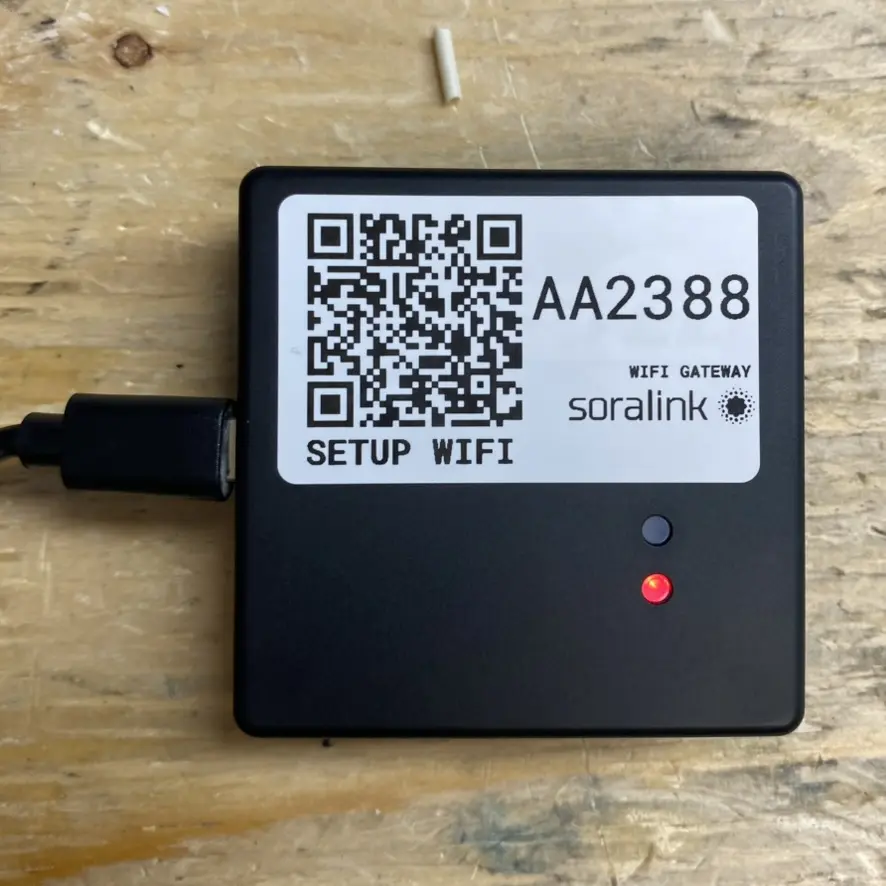
Join the setup network
Before connecting to a WiFi network, the lights on the gateway will remain off - this is normal and expected behaviour
QR code scanning
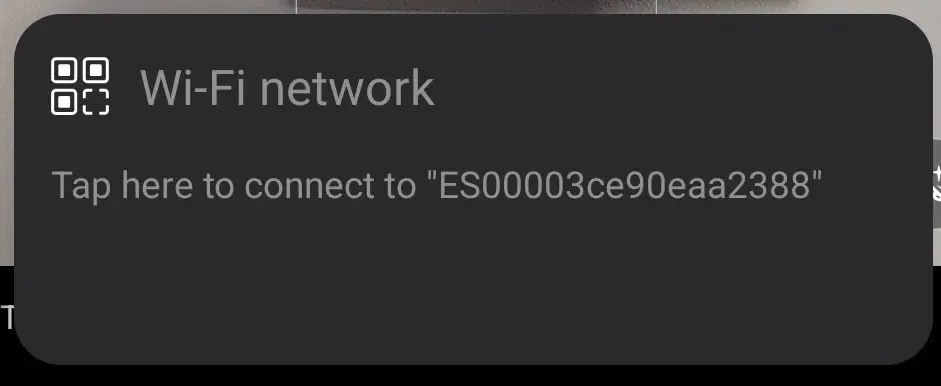
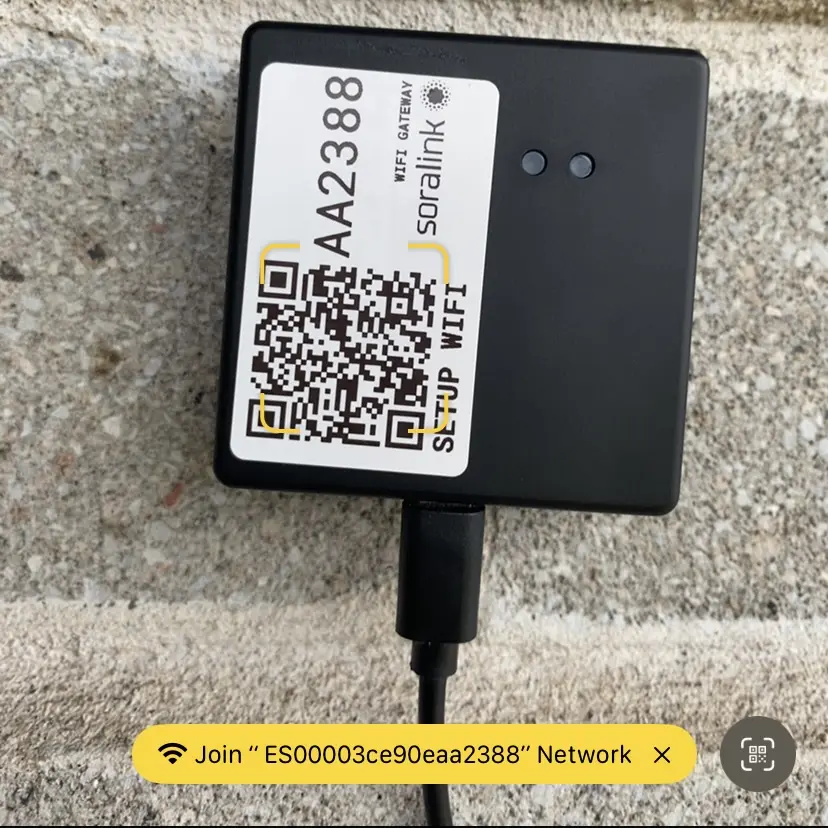
On smartphones, scanning the QR code will automatically connect you to the gateway. The prompt will look like:
Connect to the setup network manually
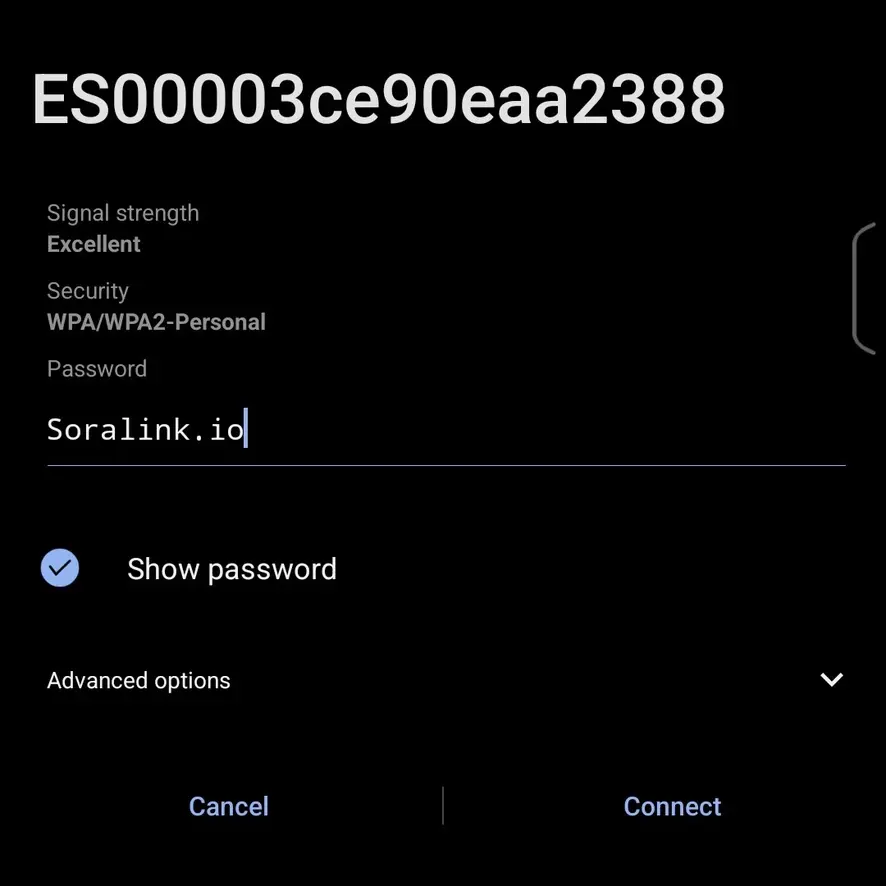
The gateway broadcasts a wifi network with the gateway ID, the last characters of which are printed on the label.
ES00003ce90eaa2388
The password is hardcoded to Soralink.io
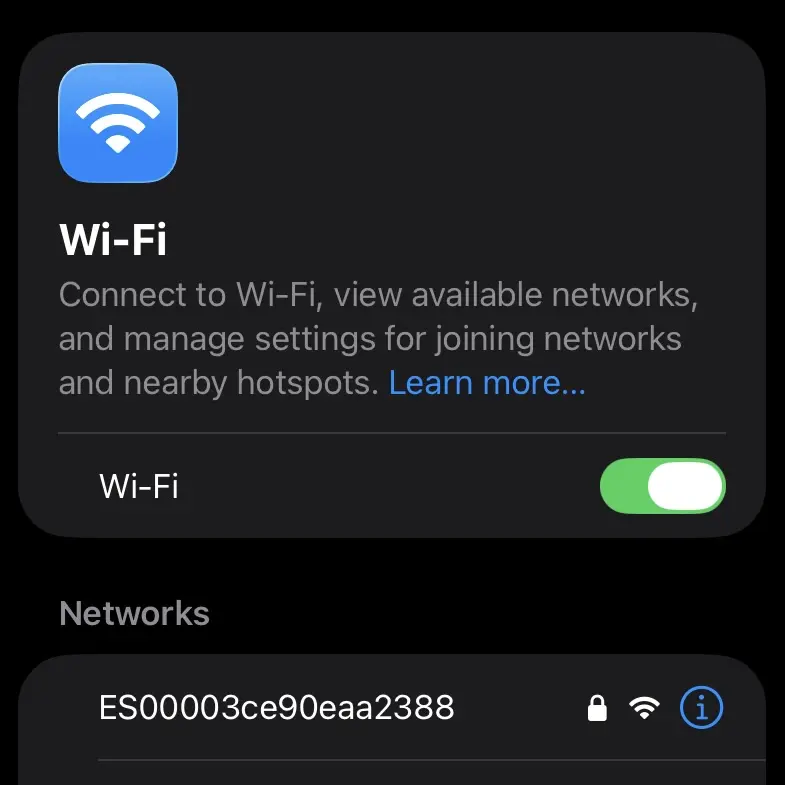
Access the setup page
Continue with the prompt to “Sign in to Wi-Fi network”. On Apple this should open automatically once Safari is launched.
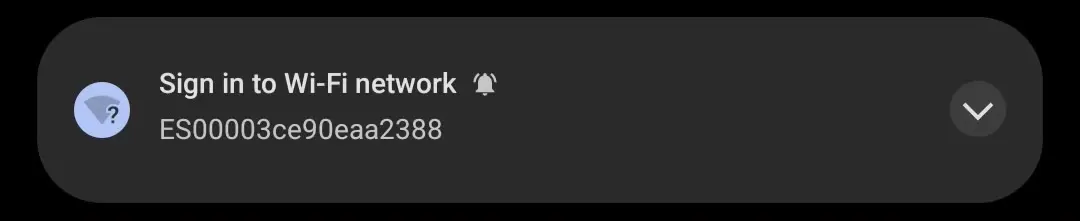
If the prompt does not show up, you can access the configuration page at 192.168.4.1
Establish cloud connection
Hit Scan Networks to discover your Wi-Fi network
Enter your password and hit the Connect To Network button to connect your Wi-Fi gateway
!!! warning Only WPA Personal WiFi networks are supported. WPA Enterprise WiFi networks that require an username and password to connect are not currently supported.
WiFi Configuration
Configure your ESP32 network connection
Validate gateway status
A blinking red light  indicates that the gateway is booting
Once the red light becomes solid  that means the gateway has successfully connected and is sending data.
Mounting the gateway
Once you have ensured that the gateway is connected, remove the adhesive backing and mount the gateway at least 1.5m off the ground, adhering the gateway to the surface for 10 seconds.